Product Replacement Exception - New Unit Already Installed
Topics:
- Field Operations Manager (FOM) requesting product replacement for installed unit, exchange already took place
- Product replacement, unit installed, Product Distributor credit request
- How to process a product replacement (RMT), prorate if exchange is complete
- How to use the product replacement tool if FOM escalates case and replacement has taken place, no negotiation
- Dealer exchanged product, no Customer Care contact, distributor requesting credit
- Will the customer receive emails for a manual process product replacement, when the new product was already installed?
Answer:
To process a product replacement that already took place, use the Product Replacement tool.
- This is used to document a product replacement that already happened (new product installed in the home, old product removed before processing the request).
- The customer does not receive any emails.
- The serial number of the new product is required.
To document the completed replacement:
The Field Operations Manager creates and escalates a Product Replacement Case in D365.
- Open the escalated product replacement case in D365.
- Update the following as needed:
- Unit Warranty and Registration
- Customer Account
- Service Company
- Caller Type
- Caller Contact
- Case Owner = your name
- Use the FOM for the case manager in the Product Replacement Tool.
- Document the Case thoroughly.
- Unit Warranty and Registration
- Save.
- Click Product Replacement.
Product Replacement Tool
Step 1
- On the Location Verification tab, verify the address, distributor, and customer name.
- Click Start Manual Process.
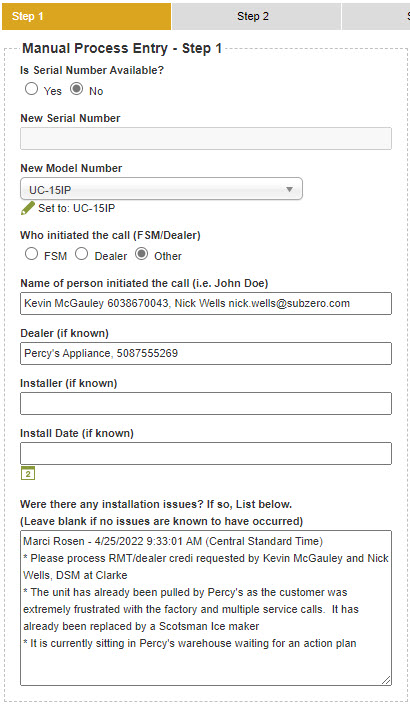
- Under Serial Number Available, select Yes.
- Add the new serial number.
- Serial number of the new product is required.
- Click “Set to: XXX-XXX” or select the model.
- Click the person who initiated the call.
- Enter the name of the person and contact information.
- MUST Include phone number and/or email.
- (If known) fields are not required, except dealer information.
- Enter as much information as possible.
- MUST request and document:
- Dealer name
- Dealer contact first and last name
- Dealer contact email address
- Dealer contact phone number
- List any known installation issues.
- Also use this field to include special notes.
- Click Save & Continue.
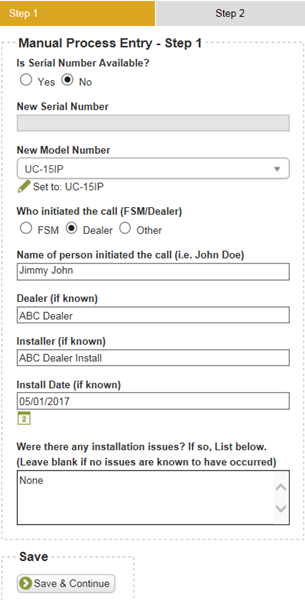
Step 2
- Verify the replacement product location.
- Click Save & Continue.
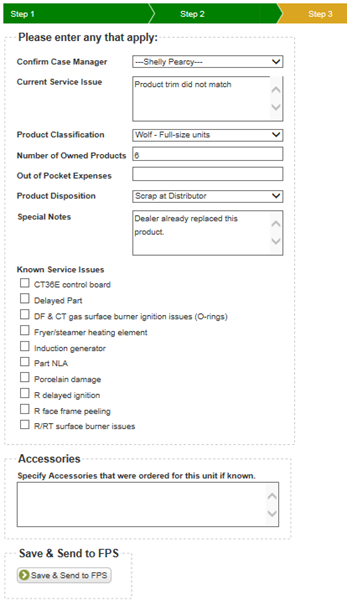
Step 3
- Confirm Case Manager (select FOM).
- In the Current Service Issue field, enter the issue. Be clear in describing the issue.
- Complete the Product Disposition field based on the paperwork.
- Add notes to the Special Notes field as needed.
- Select Known Service Issue (select only 1) as needed.
- Indicate MSRP for this unit.
- Specify accessories that were ordered for this unit (include part number and name if available).
- Click Save & Continue.
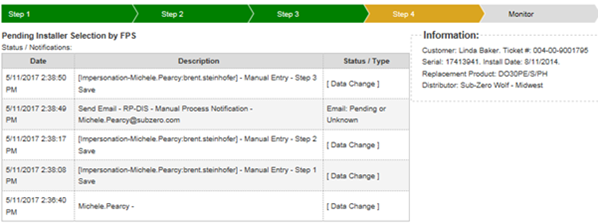
Step 4
A confirmation appears that the request was sent to FPS. FPS will select the installer.
DID THIS ANSWER YOUR QUESTION?

We're standing by with answers
Whether you're shopping for appliances or have questions about those you already own, we've got the resources you need. Talk directly to a customer care expert at the Sub-Zero, Wolf, and Cove service center, or connect with an appliance consultant at an official showroom near you. Get quick answers online, or reach a certified service provider or installer. And much more.
Call us at (800) 222-7820